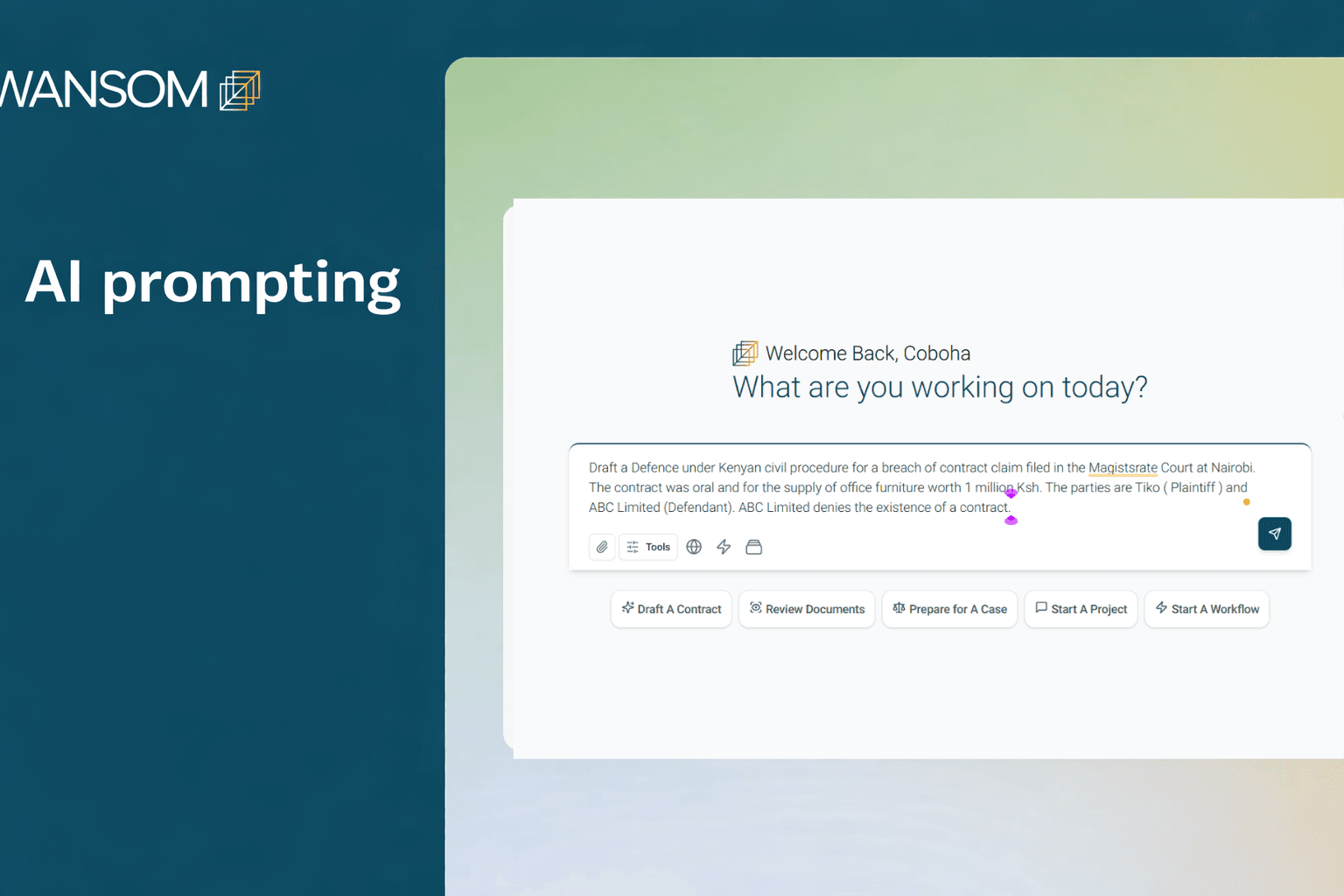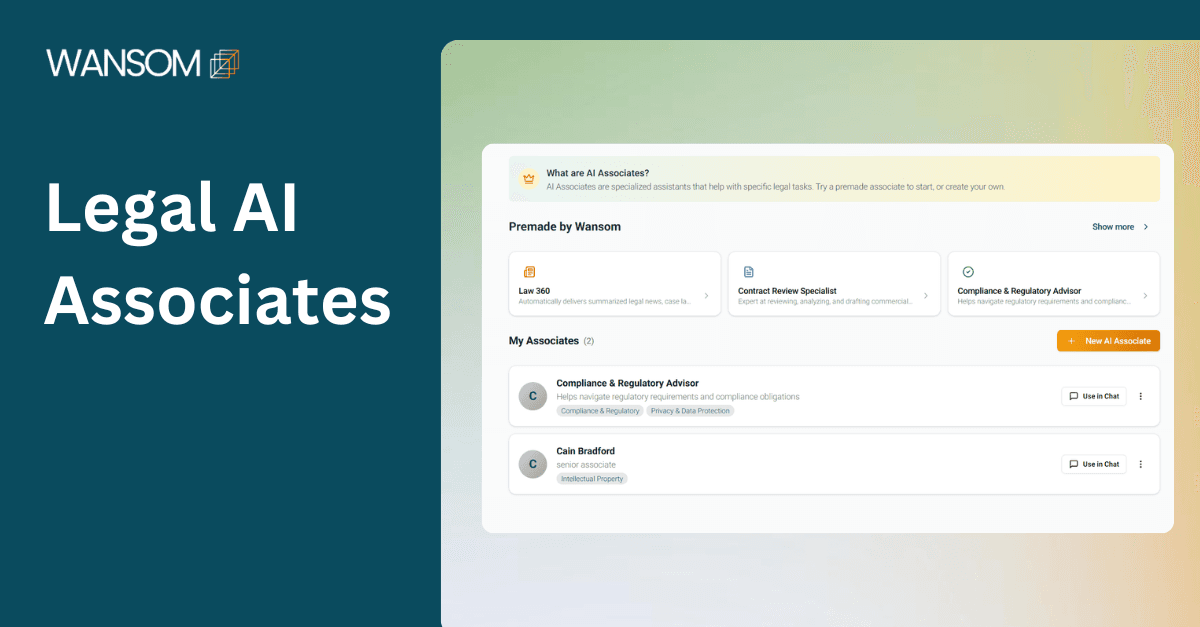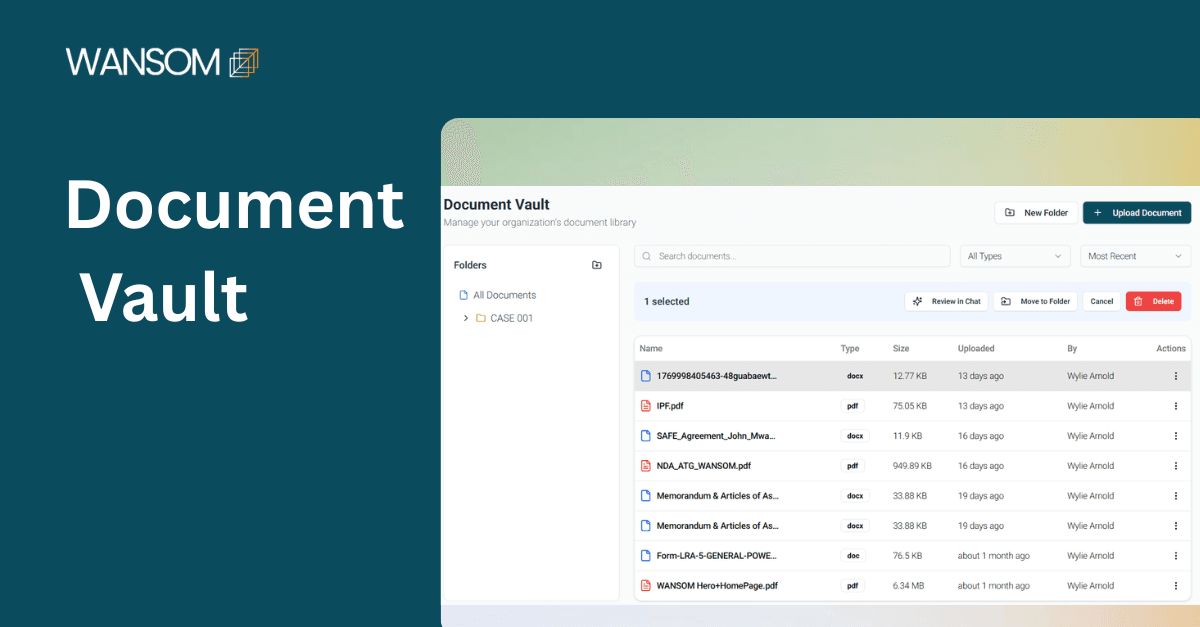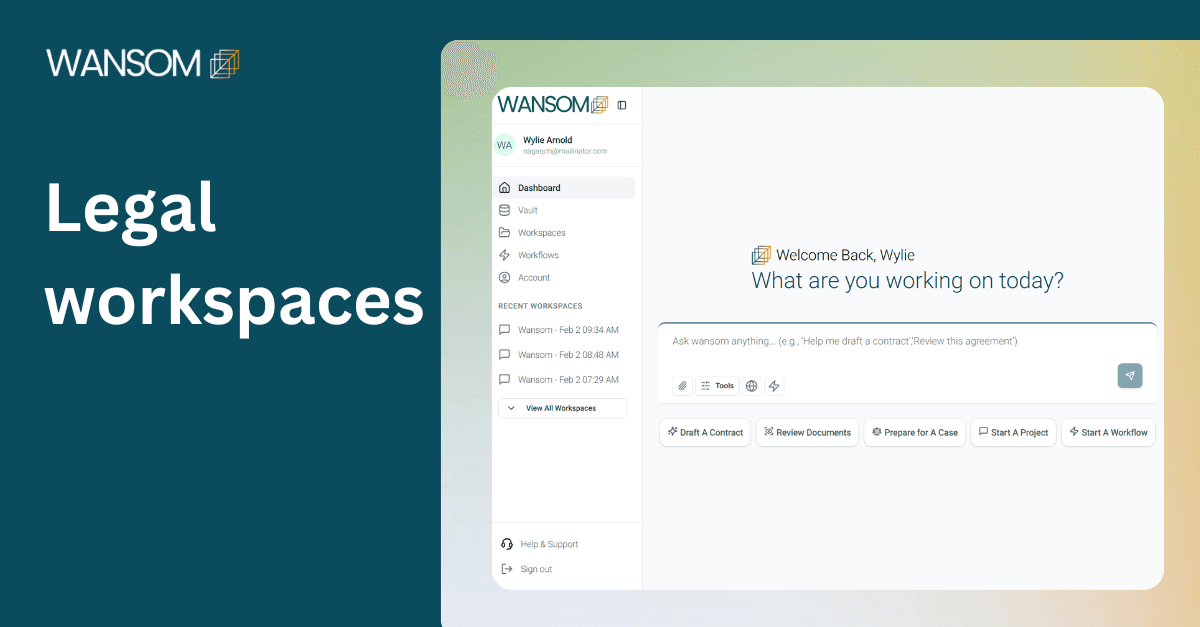
Using AI effectively requires more than access to legal AI tools; it requires structure.
That is where the Workspace feature on Wansom AI becomes essential.
AI Workspace serves as your firm’s secure digital legal environment, allowing you to organize legal matters and manage collaboration all in one space.
In this guide, we walk you through how to create a Workspace on Wansom AI.
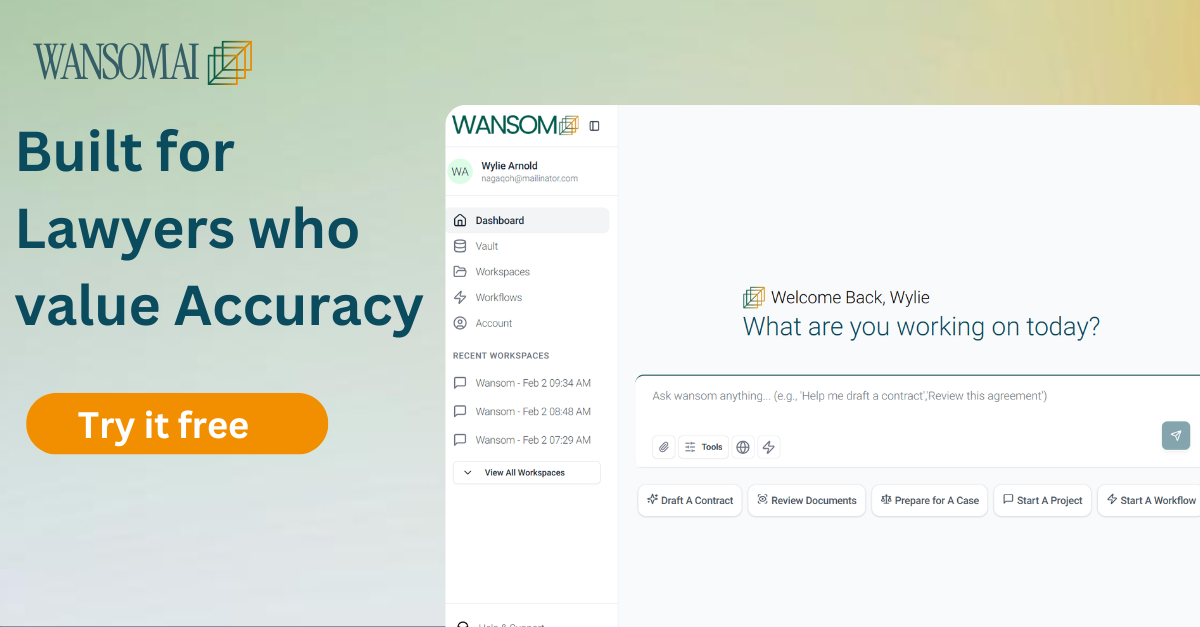
What Is a Legal AI Workspace on Wansom AI?
A Workspace on Wansom AI is a centralized, secure environment where you manage your legal projects. You can;
Conduct AI-powered legal research
Draft pleadings and submissions
Analyse judgments, authorities, and documents
Collaborate with colleagues
Organize matters by client or practice area
For law firms handling multiple clients, cases, and departments, Workspaces ensures it is a structured and organized space for your projects.
Step-by-Step Guide: How to Create a Legal AI Workspace on Wansom AI
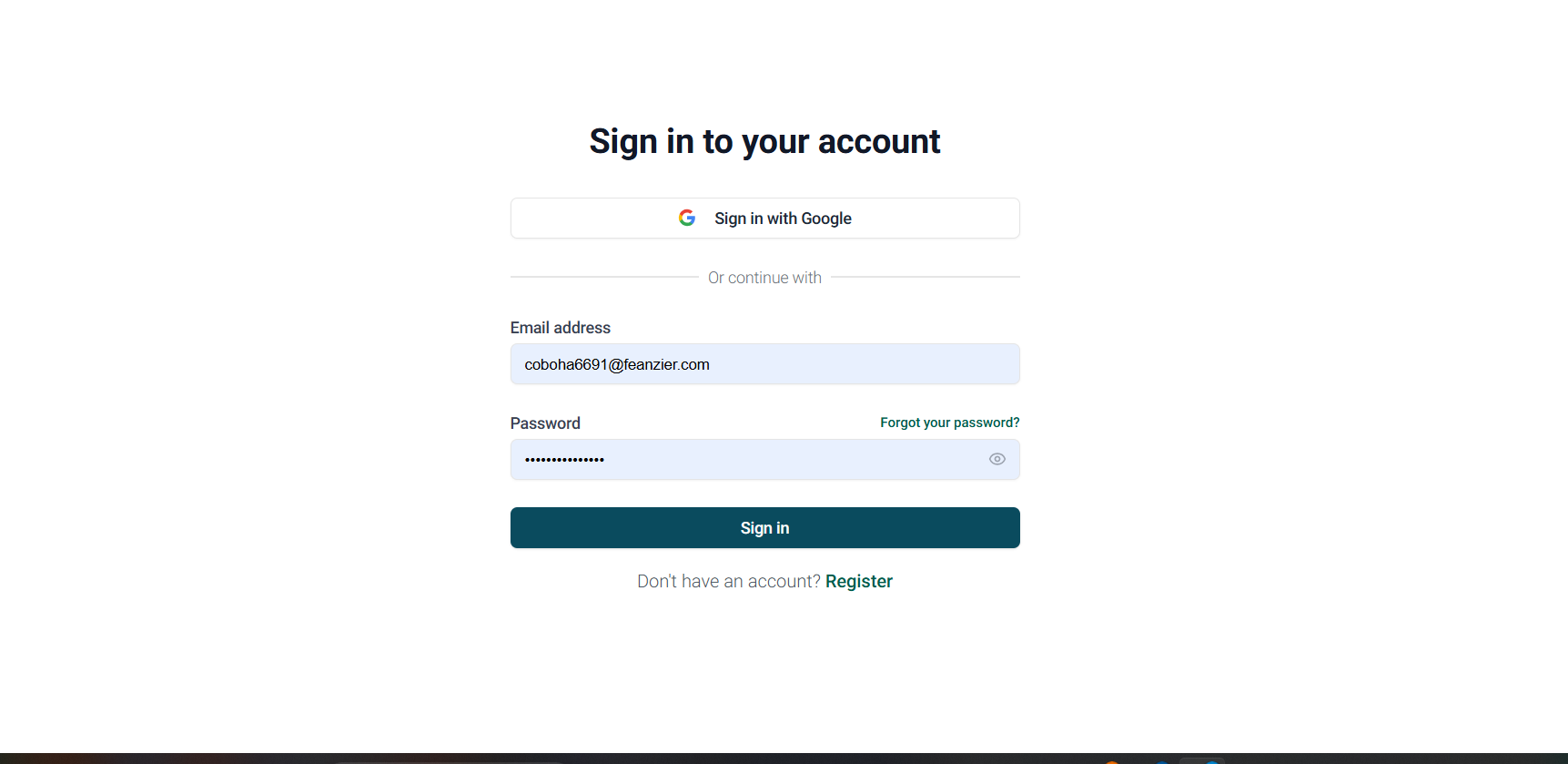
1. Log In to Your Wansom AI Account
Visit the Wansom AI platform and log in to your account using your registered credentials.
New users can:
Sign up using professional details
Verify their email
Access the main dashboard
Once logged in, you will be directed to your central dashboard.
2. Click Workspace and then “Create Workspace.”
On your dashboard, locate and select the “Workspace” option. Then, “Create Workspace.”
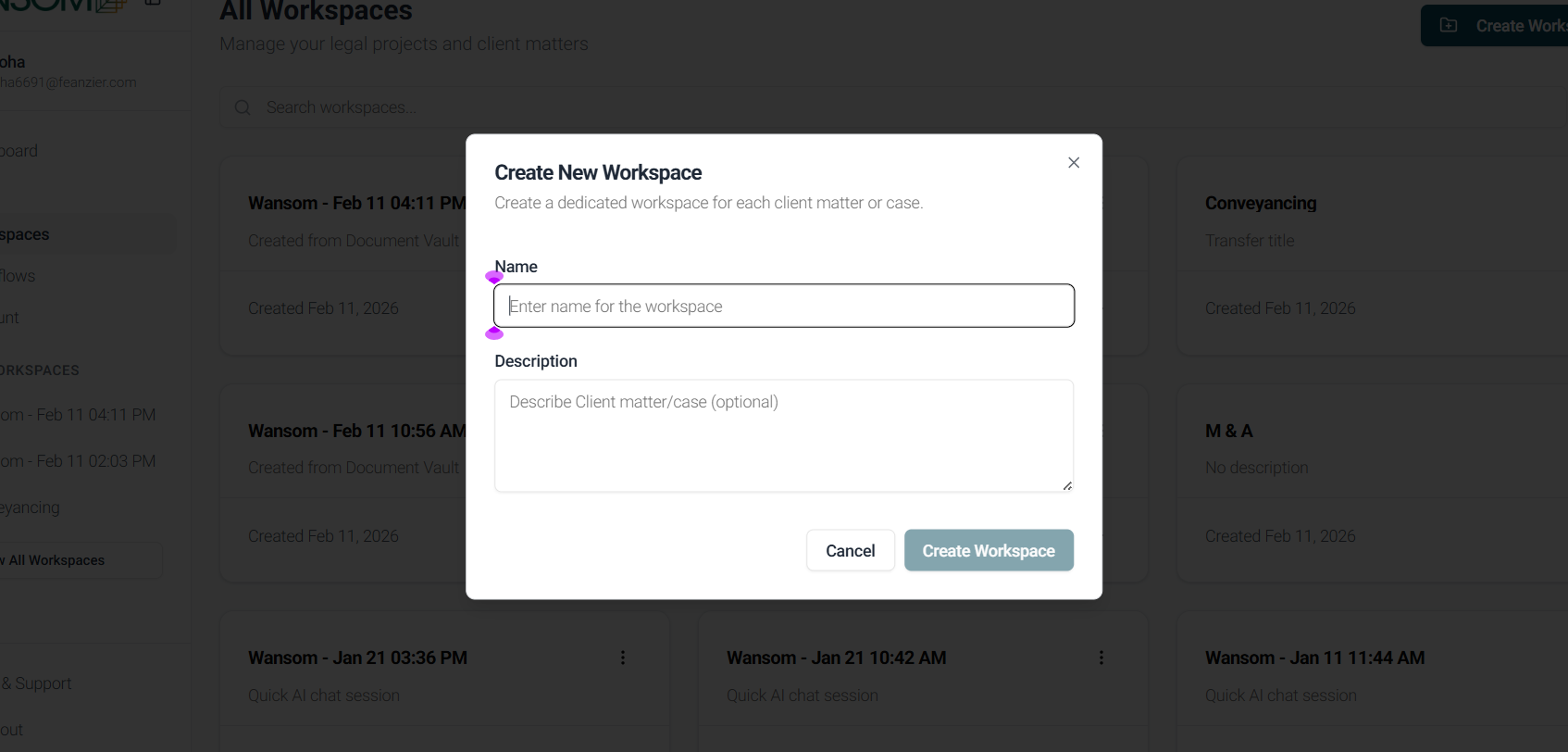
3. Name Your Workspace based on your project
Choose a name that reflects your firm’s structure, work, projects, clients, or operational needs. Examples include:
Litigation / M & A / Conveyancing
Corporate Team/ Litigation/ Banking
Client Matter – XYZ Limited
4. Invite Team Members and Assign Roles
Wansom AI enables collaboration within each Workspace.
To invite members:
Navigate to Account in your dashboard settings
Select “Invite Member.”
Enter the member's professional email to invite them
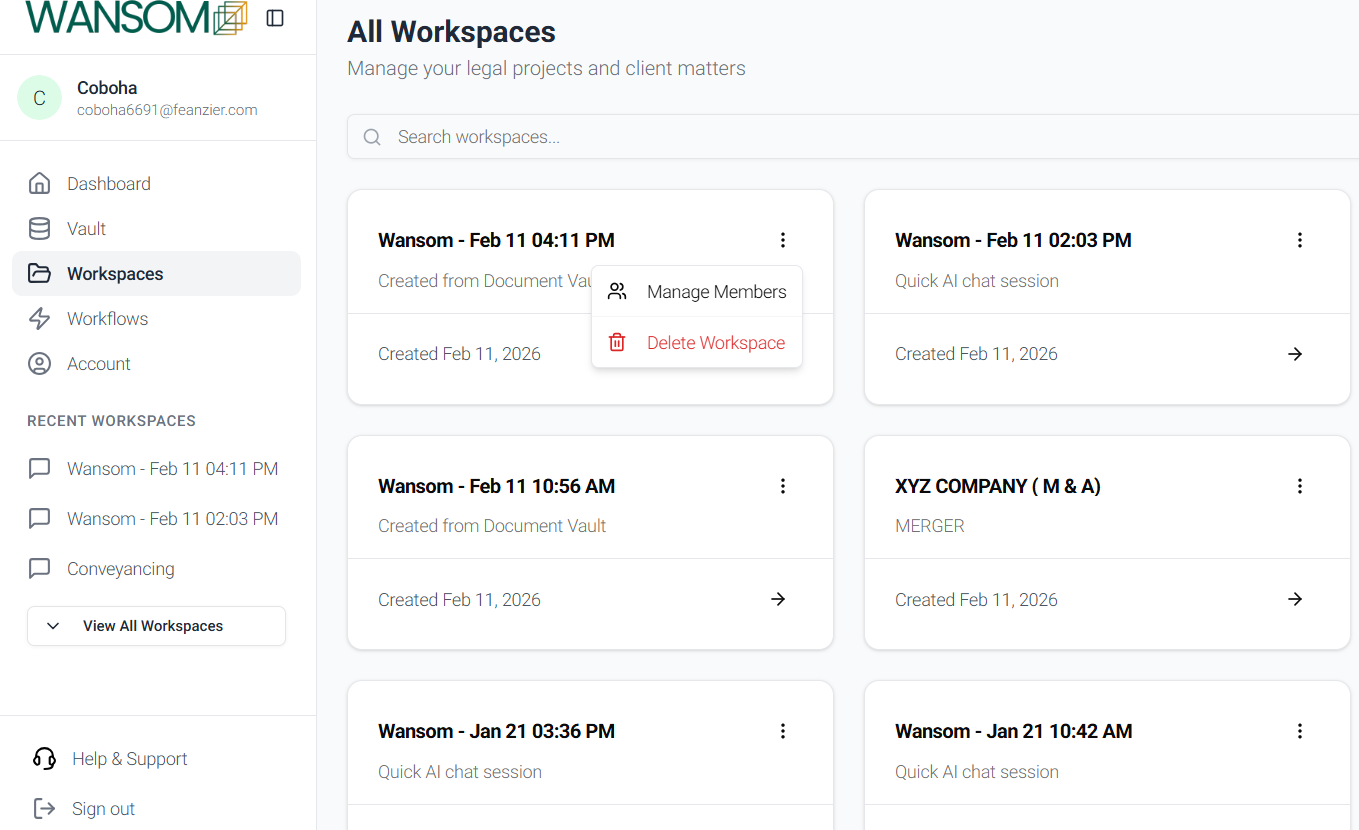
To join a workspace collaboratively, select the three dots in the right corner of the workspace and invite members to the workspace.
5. Organize Matters Within the Workspace
Once created, structure your Workspace according to your workflow. Common organizational approaches include:
By client
By case number
By practice area
By court level
By transaction type
Proper organization enhances efficiency, improves the accuracy of AI output, and strengthens institutional knowledge management.
6. Start using your workspace
With your Workspace set up, you can begin leveraging Wansom AI to:
Conduct advanced legal research
Summarize case law
Extract legal principles
Generate draft pleadings
Compare judicial authorities
Collaborate on submissions
All activity remains contained within your designated Workspace, ensuring matter separation and professional integrity.